
How do I set a custom thumbnail for a specific livestream or event?
You can have a default thumbnail for your channel and still apply a separate, event-specific thumbnail to make a particular livestream stand out. To upload a custom thumbnail for a single event, follow the steps below:
- Navigate to the game or live event for which you want to apply the custom thumbnail.
- Open the livestream settings for that event.
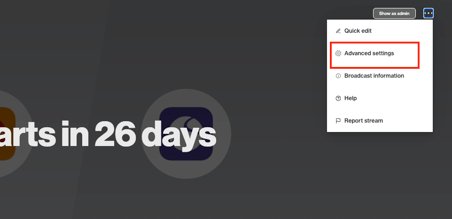
- Select Advanced Settings.
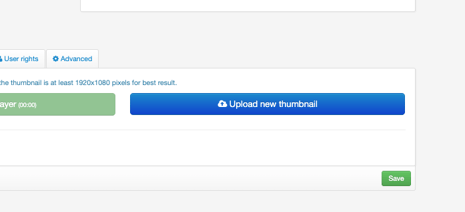
- Select Thumbnail.
- Select Upload new thumbnail, choose your photo, and click Save once it has uploaded.
Press Advanced Settings
Then press Thumbnail

Then press Upload new thumbnail , and choose your photo, then save when uploaded.

Note: This thumbnail applies only to the specific event or livestream you selected — your default thumbnail remains unchanged for all other livestreams.